
VortexPanel WHMCS Module Guide
Where the module is
The WHMCS module ships inside the Hosting Module 3.2, so every server with the Hosting Module already has it. There are three ways to get it:
- From the panel (easiest): VortexPanel > Users & API (in the menu) > API keys tab > Create API key, set Role to Hosting provisioning (WHMCS) and click Download WHMCS module. You get vortexpanel-whmcs-1.0.0.zip.
- On the server: the folder /opt/vortexpanel/plugins/hosting/whmcs/vortexpanel/.
- Attached to this guide's chat message: the same zip, built from the Hosting Module 3.2 source.
The zip holds one folder, vortexpanel/, with three files: vortexpanel.php (the module), templates/clientarea.tpl (the customer's service page) and README.txt.
What it does and what it needs
WHMCS creates and manages VortexPanel hosting accounts by itself when customers order, pay, stop paying or upgrade.
| WHMCS action | What happens in VortexPanel |
|---|---|
| Create (new order) | A hosting account with the product's package; the user name and password are saved back to WHMCS |
| Suspend / Unsuspend | The account is suspended or reactivated (the suspend reason is kept) |
| Terminate | The account and its websites are removed |
| Change Package (upgrade/downgrade) | The account moves to the new package; limits change at once |
| Change Password | The customer portal password changes |
| Log in to the control panel | The customer (or you, from the admin area) is signed in to the portal without a password |
| Daily cron "Update usage" | Disk and bandwidth usage and limits are written to the WHMCS service |
Requirements
- VortexPanel 3.9 (the API key role) with the Hosting Module 3.2 installed and licensed.
- WHMCS 8.x with PHP cURL (standard).
- WHMCS must reach the panel's address and port. If you use the firewall, allow the WHMCS server's IP on the panel port.
- A real SSL certificate on the panel address is strongly recommended. Without one the API key travels unprotected; the product option Accept self-signed panel certificate exists only for testing.
- At least one hosting package in VortexPanel (Hosting Accounts > Packages).
Step 1: Create the API key in VortexPanel
WHMCS signs in to VortexPanel with an API key that can only manage hosting accounts. It cannot open files, change settings or run commands.
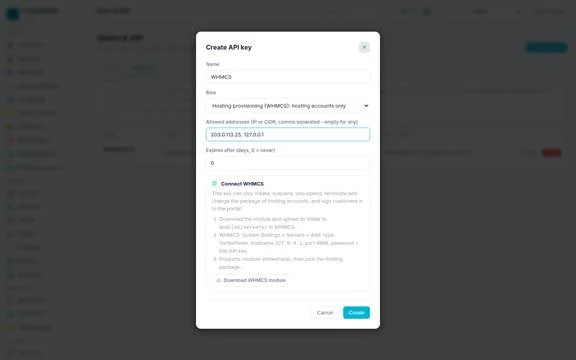
- In VortexPanel's menu open Users & API, then the API keys tab, and click Create API key.
- Name: WHMCS.
- Role: Hosting provisioning (WHMCS): hosting accounts only. The Connect WHMCS box appears with the host and port WHMCS must use, and the Download WHMCS module button.
- Allowed addresses: the public IP of your WHMCS server. The key is refused from any other address.
- Expires after: 0 (never), or a number of days if you rotate keys.
- Click Create.
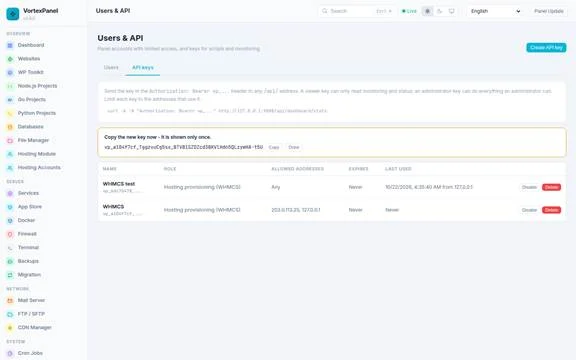
The key is shown once. Copy it now: it goes into WHMCS as the server password in step 3. If you lose it, delete the key and create a new one.
Step 2 and 3: Upload the module and add the server in WHMCS
Upload the module
- Unzip vortexpanel-whmcs-1.0.0.zip.
- Upload the vortexpanel folder to modules/servers/ in your WHMCS folder, so the file sits at modules/servers/vortexpanel/vortexpanel.php.
- Nothing needs activating: WHMCS lists VortexPanel as a server module straight away.
Add the server (System Settings > Servers > Add New Server)
| WHMCS field | What to enter |
|---|---|
| Name | Any name, for example VortexPanel Pune 1 |
| Hostname | The panel's host name, the same one in your panel address, for example panel.yourhost.com |
| IP Address | The server's IP (optional when the hostname is set) |
| Module | VortexPanel |
| Password | The API key from step 1 (starts with vp_) |
| Port | The port in your panel address (the Connect WHMCS box shows it); tick Override with Custom Port |
| Secure | Ticked when the panel address starts with https |
| Username, Access Hash | Leave empty |
Click Test Connection. Connected successfully means WHMCS can reach the panel and the key works. Then save, and put the server in a server group (Create New Group) so products can use it.
The hostname also matters for customers: single sign-on sends them to the customer portal on this host name, port 2087 by default.
Step 4: Set up the hosting product
Each WHMCS product points at one VortexPanel package. Make one product per package you sell.
- System Settings > Products/Services > Create a New Product, type Shared Hosting, and set its name and pricing as usual.
- Open the Module Settings tab.
- Module Name: VortexPanel. Server Group: the group with the server from step 3.
- Package: pick from the list. WHMCS reads the packages straight from the panel (Hosting Accounts > Packages), so create them there first.
- Accept self-signed panel certificate: leave it off. Turn it on only for a test panel without a real certificate.
- Choose when to set up the account, normally Automatically setup the product as soon as the first payment is received. Save.
| WHMCS product (example) | VortexPanel package |
|---|---|
| Starter Hosting | Starter |
| Business Hosting | Business |
| Pro Hosting | Pro |
For upgrades and downgrades, list the other products under the product's Upgrades tab. WHMCS then calls Change Package and the new limits apply at once.
User names and passwords. VortexPanel user names are 3 to 32 lowercase letters and digits starting with a letter, so WHMCS's user name is adjusted (Erin.Shop becomes erinshop). A password shorter than 12 characters is replaced by a generated one. Both are saved back to the WHMCS service, so the welcome email shows the real login.
How it works day to day
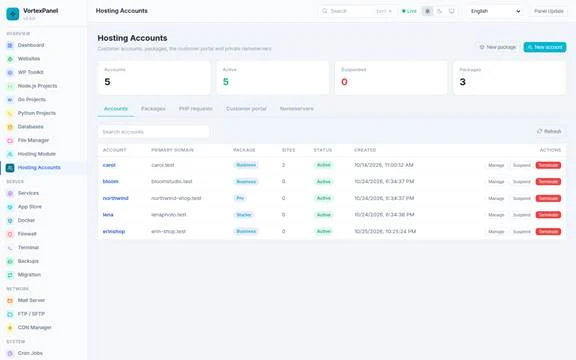
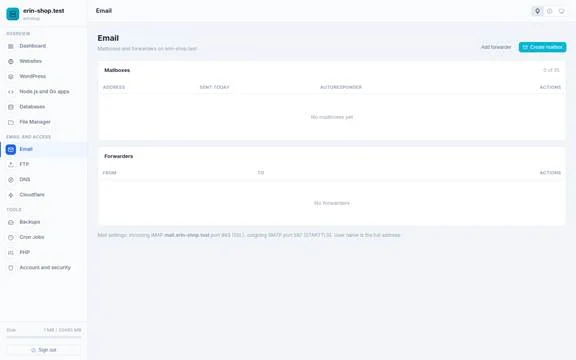
Once a customer pays, the account appears in VortexPanel under Hosting Accounts with the product's package, ready to use. Below, erinshop was created by the WHMCS module from the order for erin-shop.test.
The customer's service page in WHMCS. The module adds this panel to the product details page: a sign-in button, quick links, usage, account details and email settings.
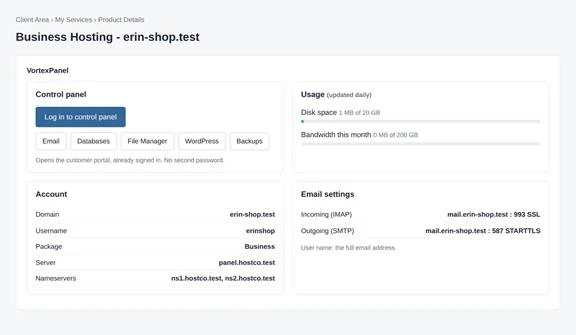
This picture shows the module's own template with the real account values, drawn outside WHMCS. In your client area it sits inside your WHMCS theme, so colours and fonts follow that theme.
Single sign-on. Log in to control panel, or one of the quick links, opens the customer portal already signed in, on that page. The link works once and only for a short time. From the WHMCS admin area, the service's Login to Control Panel button does the same for you. A suspended account cannot sign in.
Everything else runs from WHMCS as usual:
- Unpaid invoice: WHMCS suspends the account with the reason, and unsuspends it after payment.
- Upgrade or downgrade: the account moves to the new package.
- Cancellation: Terminate removes the account and its websites from the server. This cannot be undone, so keep WHMCS's termination delay if customers may come back.
- Password change in the client area: the portal password changes too.
- Usage: the WHMCS daily cron (Update usage, on by default) fetches disk and bandwidth for every account on the server. Overage billing and the usage bars use these numbers.
- The service page in the WHMCS admin area shows the account's status, package and portal address from VortexPanel.
Troubleshooting
The module writes every call to WHMCS's module log (System Logs > Module Log, turn on Debug Logging). The API key and passwords are hidden there.
| Message in WHMCS | Cause | Fix |
|---|---|---|
| VortexPanel refused the API key (wrong key, expired, or this WHMCS address is not allowed) | Key typed wrong, deleted, disabled or expired, or WHMCS connects from an IP not in Allowed addresses | Check the key in Users & API > API keys; add WHMCS's public IP, or create a new key |
| Could not reach VortexPanel: Failed to connect ... | Wrong hostname or port, or the firewall blocks WHMCS | Use the host and port from the Connect WHMCS box; allow WHMCS's IP on that port in VortexPanel > Firewall |
| VortexPanel answered HTTP ... (not the provisioning API) | Secure set wrong, or the port is a website instead of the panel | Tick Secure only for an https panel address; check the port |
| ... the panel needs a valid certificate | The panel uses a self-signed certificate | Give the panel a real certificate (Settings > Panel SSL); for tests only, turn on Accept self-signed panel certificate in the product |
| Account username already exists | That user name is taken in VortexPanel | Change the user name on the WHMCS service and run Create again |
| The account is suspended | Single sign-on for a suspended account | Unsuspend it in WHMCS |
| The Hosting Module licence is not active | The Hosting Module licence ended or cannot be checked | Open Hosting Module in VortexPanel; existing accounts keep running, but new accounts and package changes wait for an active licence |
| Package list is empty in Module Settings | No packages in VortexPanel, or the server connection fails | Create packages in Hosting Accounts > Packages, then run Test Connection |
https://drive.google.com/file/d/19gcUKnUPU6_1vIzavPNTzEr0xYX5hgHL/view?usp=sharing